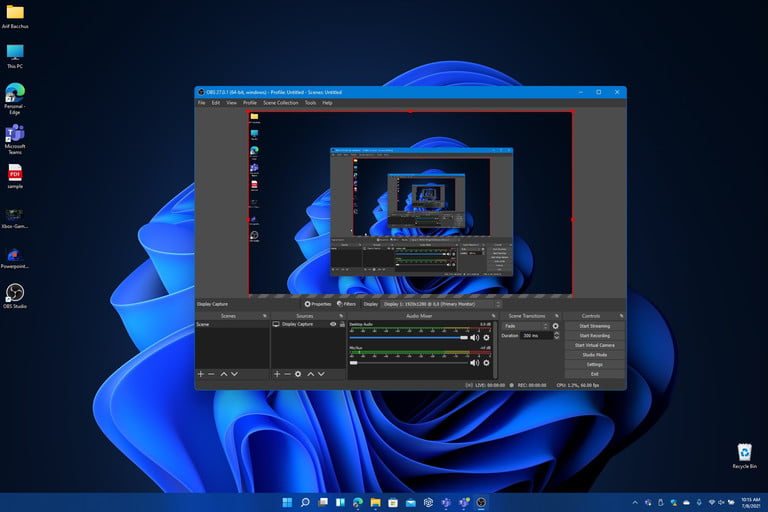
Recording your screen is a handy way to demonstrate anything on your PC. Be it installing a software or doing something with changes in Settings, with screen recording you can help out everyone. We have one of methods helped you record your Windows display.
 |
| How to record screen on Windows 11 with audio |
Adjust recording settings of the Xbox Game Bar
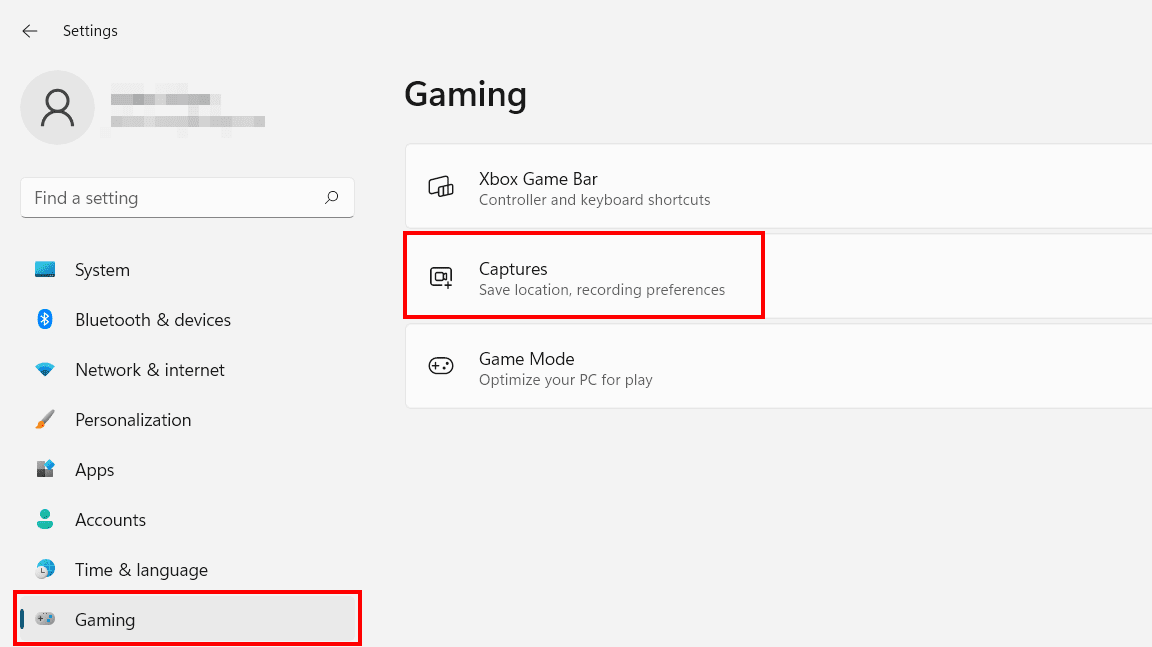
Before you start a screen capture in Windows 11, first check the current settings for recordings with the Xbox Game Bar and adjust them if necessary. You can access the corresponding menu as follows:
- Launch the start menu.
- Click on “Settings”.
- Select the “Gaming” item in the left-hand menu.
- Click on the menu item “Captures”.
 |
| How to record screen on Windows 11 with audio |
Begin Windows 11 screen capture
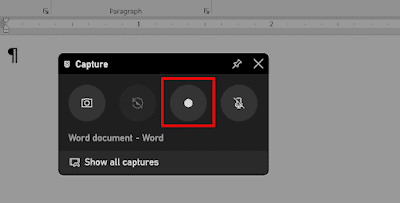
Now use the Record button to begin recording video of your chosen program or game. You could also use the key combination instead: [Windows] key + [Alt] + [R].
Other options
Free and open source software for video recording and live streaming.